gitgithubversion-controlbeginnersdeveloper-tools
Git & GitHub for Beginners — Step-by-Step Workflow (No Confusion)
S
Git & GitHub for Beginners — Step-by-Step Workflow (No Confusion)
Git feels confusing at first.
Too many commands. Too many errors.
This guide fixes that by teaching:
👉 What to run 👉 When to run 👉 What each command actually does
🧠 The Mental Model (IMPORTANT)
Think like this:
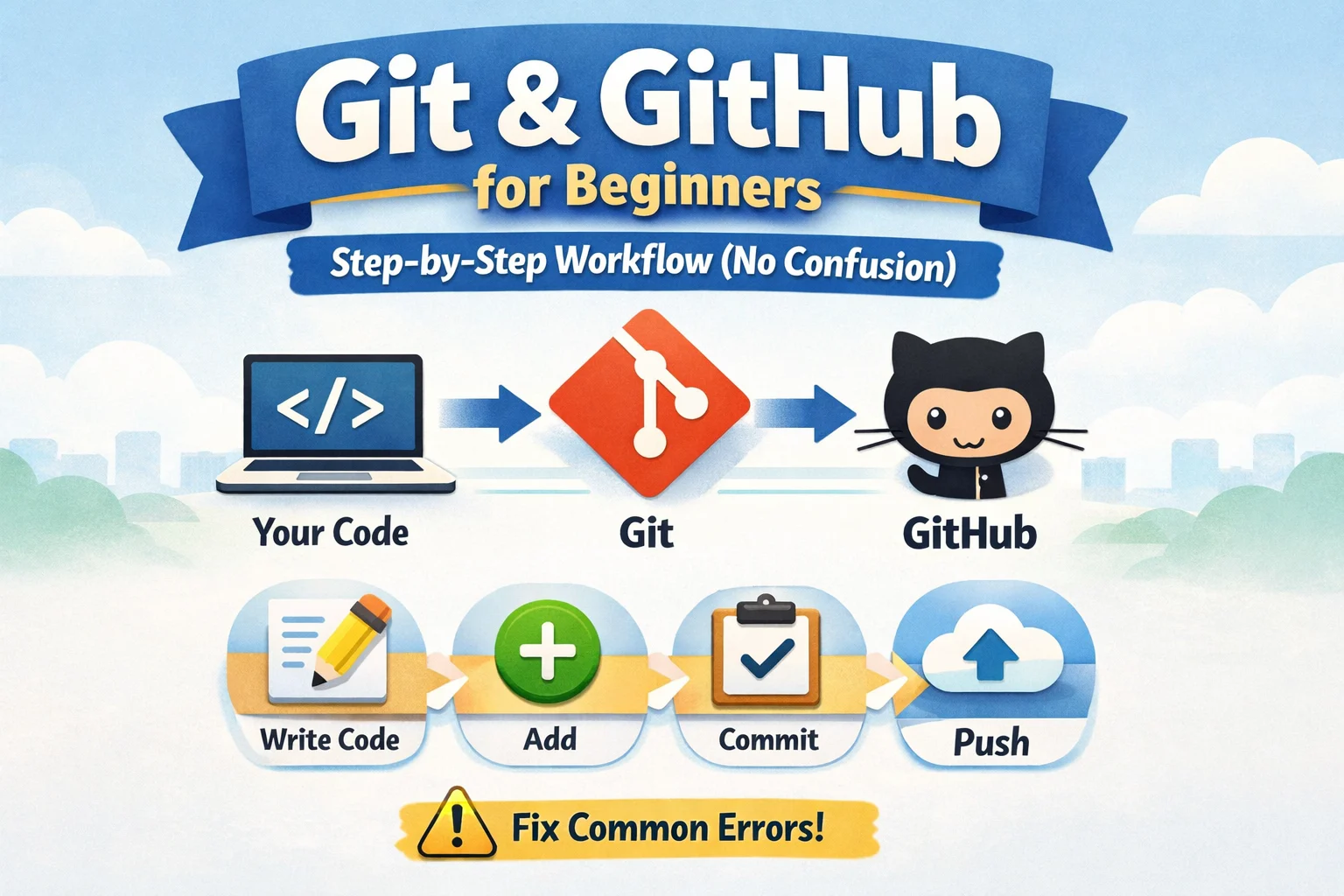
Your Code → Git → GitHub
Flow:
Write Code → Add → Commit → Push
⚙️ Step 0 — Setup (only once)
git config --global user.name "Your Name"
git config --global user.email "your@email.com"
What this means
- Tells Git who you are
- Every commit will store your name
📁 Step 1 — Start a Project
Option A: New project
git init
What it does
- Creates a hidden
.gitfolder - Starts tracking your project
Option B: Existing project
git clone https://github.com/user/repo.git
cd repo
What it does
- Downloads code from GitHub
- Connects your local project to remote repo
✍️ Step 2 — Make Changes
Create or edit files.
Example:
touch index.js
👉 This is just your normal coding step
➕ Step 3 — Add Changes
git add .
What it does
- Moves changes to "staging area"
- Prepares files for commit
Think of it like: 👉 "I want to include these changes"
💾 Step 4 — Commit Changes
git commit -m "Added initial code"
What it does
- Saves a snapshot of your code
- Adds a message describing changes
Think: 👉 "Save this version"
🔗 Step 5 — Connect to GitHub
git remote add origin https://github.com/user/repo.git
What it does
- Links your local project to GitHub
origin= name of your remote repo
🚀 Step 6 — Push to GitHub
git push -u origin main
What it does
- Uploads your code to GitHub
-usets default tracking (so next time justgit pushworks)
🔄 DAILY WORKFLOW (VERY IMPORTANT)
Every time you work:
git pull origin main
git add .
git commit -m "your message"
git push origin main
What each step means
git pull→ get latest code from GitHubgit add→ prepare your changesgit commit→ save locallygit push→ upload to GitHub
🌿 BRANCHING (BASIC)
git checkout -b feature/login
What it does
- Creates a new branch
- Switches to it
👉 Used for features
git checkout main
👉 Switch back to main branch
⚠️ COMMON ERRORS (and FIXES)
❌ Push rejected
git pull origin main --rebase
git push origin main
👉 Means someone else updated code
❌ Merge conflict
What happens
- Two people edit same file
Fix
- Open file
- Resolve conflict
- Run:
git add .
git commit -m "fixed conflict"
❌ Detached HEAD
git checkout main
👉 You are not on a branch
❌ Undo last commit
git reset --soft HEAD~1
👉 Removes last commit but keeps code
🧠 Key Commands (Quick Reference)
git init→ Start tracking your projectgit clone <repo-url>→ Download project from GitHubgit add .→ Stage all changesgit commit -m "message"→ Save snapshotgit push→ Upload code to GitHubgit pull→ Get latest code from remotegit checkout -b feature-name→ Create new branch
🔥 FINAL FLOW (REMEMBER THIS)
1. git pull
2. make changes
3. git add .
4. git commit
5. git push
🏁 Final Thought
Git is not about memorizing commands.
👉 It’s about understanding the flow.
Once you understand:
👉 Git becomes simple.